Help Scout Integration
When you connect Help Scout to AirShop, the AirShop app appears in the sidebar of your Help Scout conversations.
Need Help Scout?
We're a Help Scout partner. Sign up for Help Scout through our link—no extra cost to you, and we earn a commission.
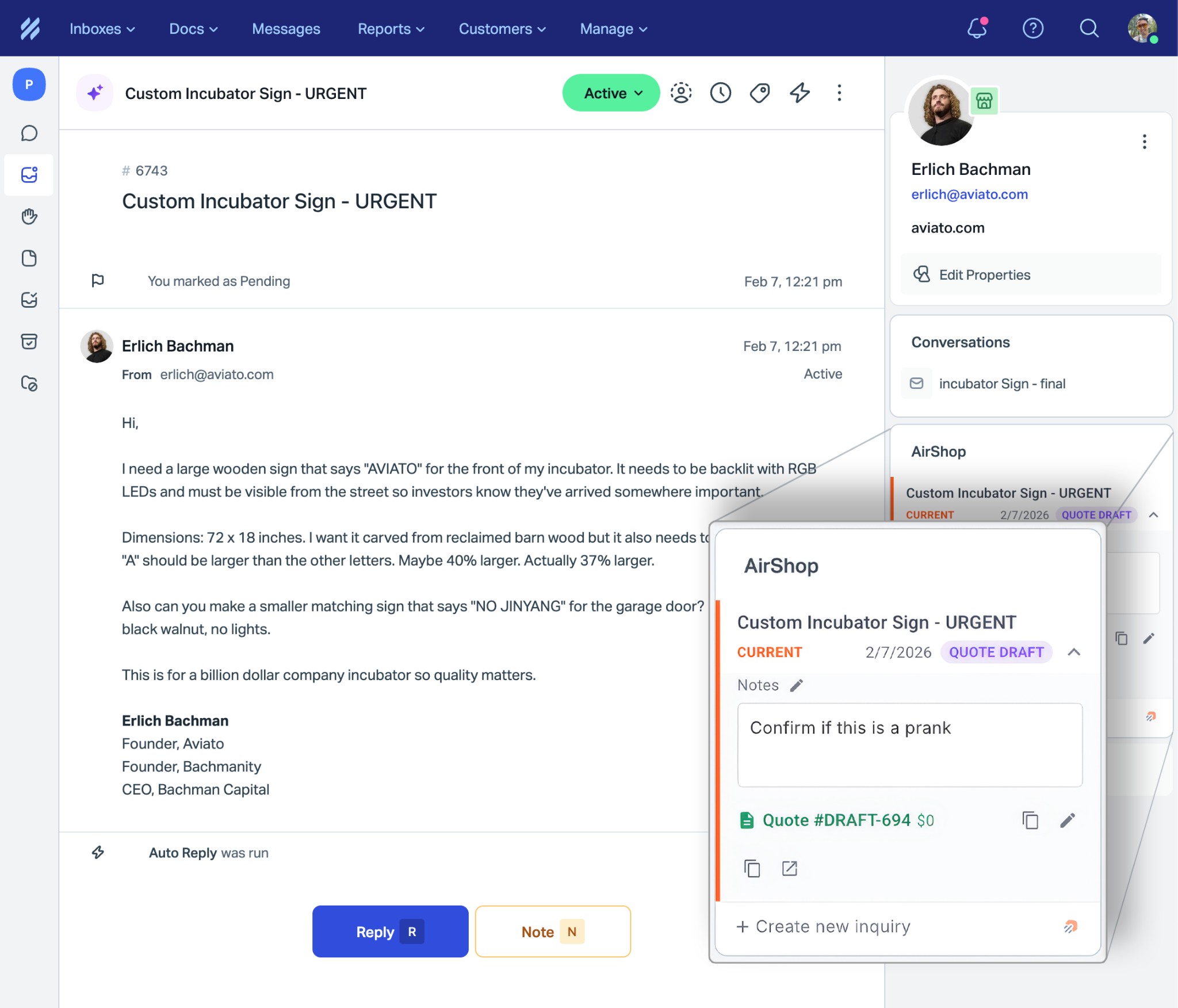
What the Integration Does
Your team can:
- View inquiries and quotes for the customer in the current conversation
- Create new inquiries in AirShop without leaving Help Scout
- Edit notes and status on inquiries directly from the sidebar
- Send customer upload links — copy a URL (and optional QR) into the reply so customers can send photos, video, CAD, and documents. See Customer upload links.
- Open inquiries in AirShop with one click
Prerequisites
- An active AirShop account
- A Help Scout account with admin access
- A Help Scout Mailbox API key (Profile → Authentication → API Keys) if you want upload notes posted in the conversation thread
Setup
1) Open the Help Scout settings in AirShop
- Log in to your AirShop account and go to Settings → Integrations → Help Scout
- Keep this page open. You'll enter your Mailbox ID and other values here after setting up Help Scout
2) Create a Custom App in Help Scout
- In Help Scout, go to Manage → Apps → Custom Apps
- Click Create Custom App
- Fill in:
- App name: e.g. "AirShop"
- Content URL:
https://www.airshop.work/helpscout(no trailing slash) - Content signature key: Paste the Content signature key provided by AirShop.
- Side Panel URLs:
https://www.airshop.work/helpscout - Click Save
- Install the app and assign it to the mailboxes you use for AirShop
3) Enter your Mailbox ID in AirShop
- In Help Scout, go to Manage → Mailboxes → select the inbox you use for AirShop
- The Mailbox ID is the number at the end of the URL (e.g.
https://secure.helpscout.net/settings/inboxes/12345→ Mailbox ID is12345) - In AirShop at Settings → Integrations → Help Scout, paste your Mailbox ID into the Mailbox ID field
4) Provide your Content signature key to AirShop
The Content signature key from your Help Scout Custom App must be configured in AirShop for the sidebar app to work.
- If the Help Scout settings page has a field for Content signature key, paste it there
- Otherwise, contact AirShop support with your Content signature key so we can configure it for your account
5) (Optional) Set up note sync
To copy conversation notes from Help Scout into AirShop, follow the Note sync instructions on the Help Scout settings page. This is separate from the Custom App setup. You'll create a Help Scout webhook and use these Webhooks fields:
Use the values shown in AirShop:
- Callback URL:
https://www.airshop.work/api/webhooks/helpscout - Secret Key: Click Generate in AirShop, then paste the generated 40-character value into Help Scout Webhooks → Secret Key.
- Events: Select Conversation Note Added. For status sync, also select Conversation Status Changed.
- Inboxes: Select the same inbox used for the Mailbox ID above.
Two different Help Scout secrets
Help Scout has two separate secret fields. Custom App Content signature key is used for the sidebar app. Webhooks Secret Key is used only for note/status sync. Both must be 40 characters or less, but they are not the same field.
6) Save in AirShop
Click Save on the Help Scout settings page.
7) Verify it works
- Open a conversation in Help Scout (from a mailbox you linked)
- The AirShop app should appear in the right sidebar
- If you see customer inquiries or quotes, the integration is working
- Try creating a new inquiry from the sidebar
- Optional: generate a customer upload link, click Link or Link & QR, paste into the reply
Customer upload links
From the AirShop sidebar on a conversation:
- Associate with Ticket (this one), a quote, or an inventory item.
- Click Generate link.
- Click Link (message + URL) or Link & QR (adds a scannable QR).
- Paste into the Help Scout reply and send.
The conversation reuses that URL until it expires or you reset it. Uploads appear as thumbs in the sidebar (photos preview; other files show the extension, e.g. PDF). Click a thumb to open the file in AirShop at Files. AirShop can also post an internal thread note when a file arrives. That needs your Help Scout API key saved in AirShop.
Full walkthrough: Customer upload links. Browse all org files: Files.
Troubleshooting
"Mailbox not linked" or no inquiries appear
- Go to Settings → Integrations → Help Scout and confirm your Mailbox ID is correct.
- The Mailbox ID must match the mailbox of the conversation you're viewing.
The app doesn't appear in the sidebar
- In Help Scout, go to Manage → Apps → find your Custom App → ensure it's installed and assigned to the right mailboxes.
"Invalid or missing Help Scout signature"
- Your Content signature key must be configured in AirShop. Contact support if you've provided it and the error persists.
- Help Scout requires the Content signature key to be 40 characters or less.
"Unauthorized" when creating an inquiry
- Reopen the app from the Help Scout conversation sidebar and try again.
- Confirm the Help Scout mailbox is linked in AirShop at Settings → Integrations → Help Scout.
- Confirm the Content URL is exactly
https://www.airshop.work/helpscoutand the mailbox assigned to the Custom App matches the Mailbox ID saved in AirShop.
The app shows "context timed out" or a loading error
- Ensure your Custom App's Content URL is exactly
https://www.airshop.work/helpscout(withwww, no trailing slash). - Contact AirShop support if it still fails.
Upload thumbs show, but no note appears in the conversation
- Save a Help Scout Mailbox API key in AirShop (Help Scout → Profile → Authentication → API Keys).
- “Enable note sync” copies Help Scout notes into AirShop. It does not create upload notes in the thread.
- See Customer upload links.