Quotes & invoicing with Stripe Connect
Collect deposits and milestone payments through your own Stripe account using Stripe Connect. AirShop never holds your customer’s payment information; card charges are processed on your connected Stripe account (separate from your AirShop subscription billing).
Where everything lives
- Stripe Payments — Connect or disconnect Stripe (organization administrators only).
- Quote Settings — Organization defaults for Invoicing and Payment Options.
- Quote Builder — Per-quote payment terms, milestones, invoices, and public quote payment visibility.
- Payments — Team workspace for balances, milestones, sending invoices, recording offline payments, and (for those offline entries) correcting mistakes with Void.
Prerequisites
- Stripe Payments — A Stripe account you can link to AirShop through Connect onboarding.
- Organization Administrator role — Only org admins can start Connect onboarding and disconnect Stripe.
1. Connect Stripe (Stripe Connect)
- Open Settings → Integrations → Stripe Payments — Path:
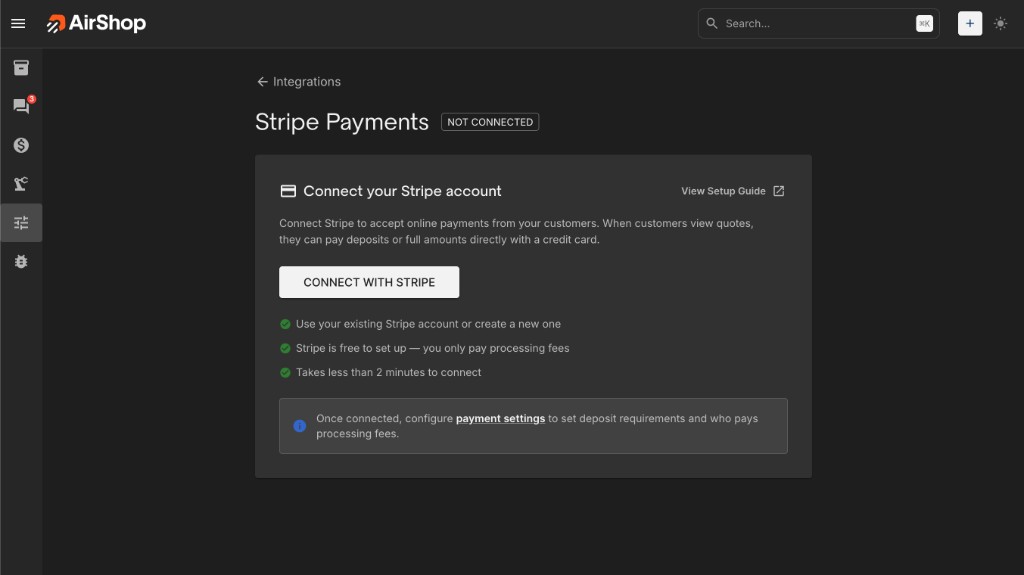
airshop.work/settings/integrations/stripe. - Click Connect with Stripe and complete Stripe’s authorization flow in the browser (you can use an existing Stripe account or create one).
AirShop uses Stripe Connect with Stripe’s standard OAuth onboarding (connect.stripe.com/oauth). You do not paste secret keys into AirShop—only the linked Connect account ID is stored after you authorize. Payouts and card data stay in Stripe; day-to-day money movement is managed from the Stripe Dashboard.
Test vs live
When your AirShop environment uses Stripe test mode, the integration page shows a Test payments indicator: checkout follows the same path as live, but no real money moves (use Stripe test cards). In live mode, the page shows Live and customer charges are real.
Some deployments keep separate test and live Connect accounts; AirShop picks the account that matches the current platform mode.
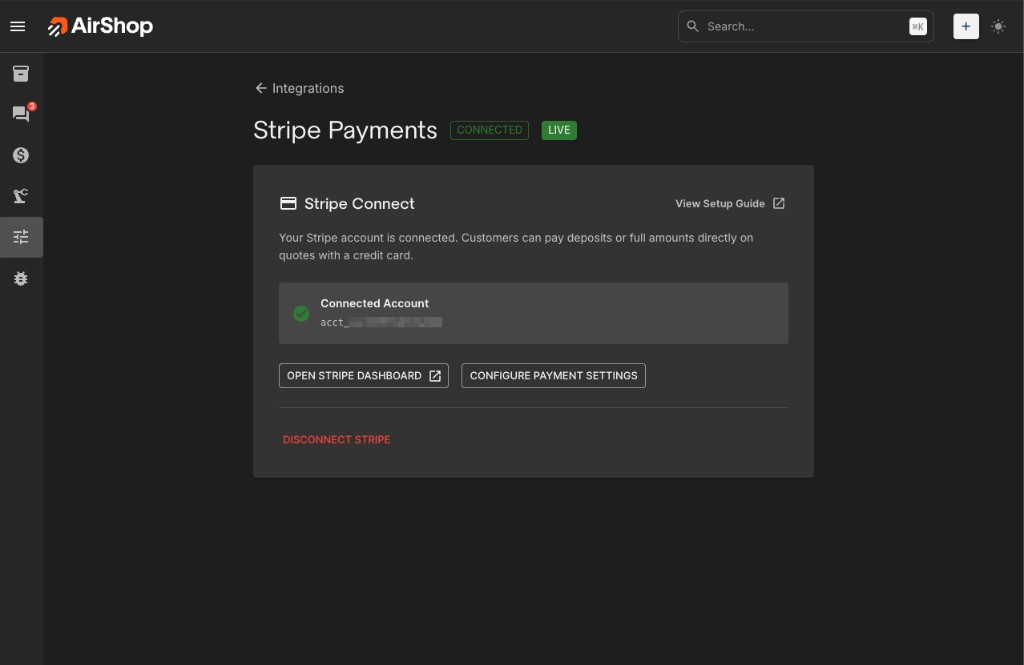
Disconnected state
If Stripe is not connected, you can still build payment milestones and send invoice emails. Customers pay using your offline instructions until Stripe Connect is complete.
2. Organization defaults — Quote Settings
Open Quote Settings, or jump straight to Invoicing or Payment Options.
Invoicing
Controls automatic invoice emails (PDF attachment optional) when milestones become due:
- Auto-send first milestone invoice when customer accepts
- Auto-send when due (completion or scheduled date)
- Attach PDF to invoice email
- Subject and optional intro HTML (tokens such as
{{invoice_number}},{{quote_number}},{{org_name}},{{milestone_name}}). - Invoice numbering — format (
{seq},{year},{yy},{month},{prefix}), padding, prefix, next sequence value. - Default due dates — net days for standard vs deposit invoices (
0= due on receipt).
Payment Options
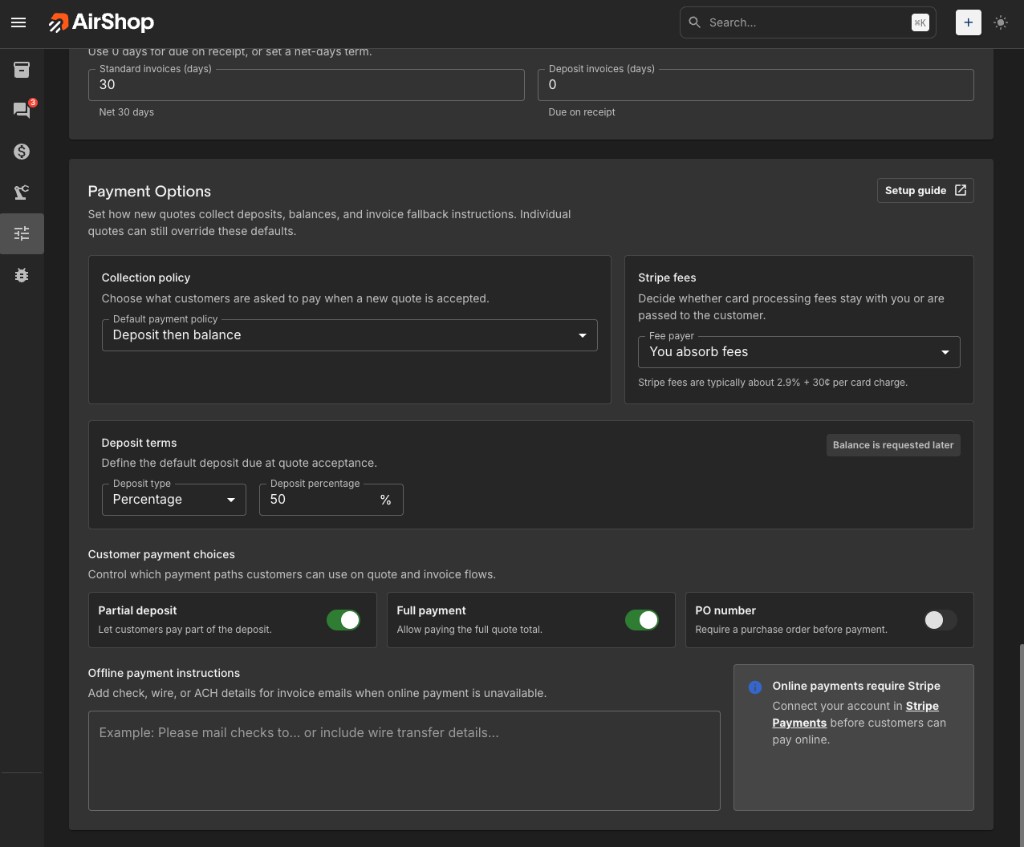
Defaults for new quotes (each quote can override in Quote Builder):
| Default payment terms | Meaning |
|---|---|
| No payment due at acceptance | Nothing is due when the customer accepts. You can invoice or collect payment later using your normal process. |
| Full amount at acceptance | One payment for the quoted total after acceptance. |
| Deposit then balance | Deposit milestone plus a balance milestone; configure percentage or fixed amount default. |
| Customer chooses amount | Flexible collection at acceptance within the bounds you allow. |
When terms expect online payment:
- Stripe processing fees — You absorb fees vs Customer pays fees (approximate card-network costs are surfaced in-product).
- Allow Partial Deposit — Customer may pay less than the full deposit when allowed.
- Allow Full Payment — Customer may pay the full quote online when allowed.
- Require PO Number — Optional enforcement on the checkout path.
- Offline payment instructions — Shown in invoice email when Stripe payment links are not used.
The page links back to Stripe setup if online payments need Connect. You can also open payment defaults from the Stripe integration page (Configure Payment Settings).
3. Per-quote payment settings (Quote Builder, bottom)
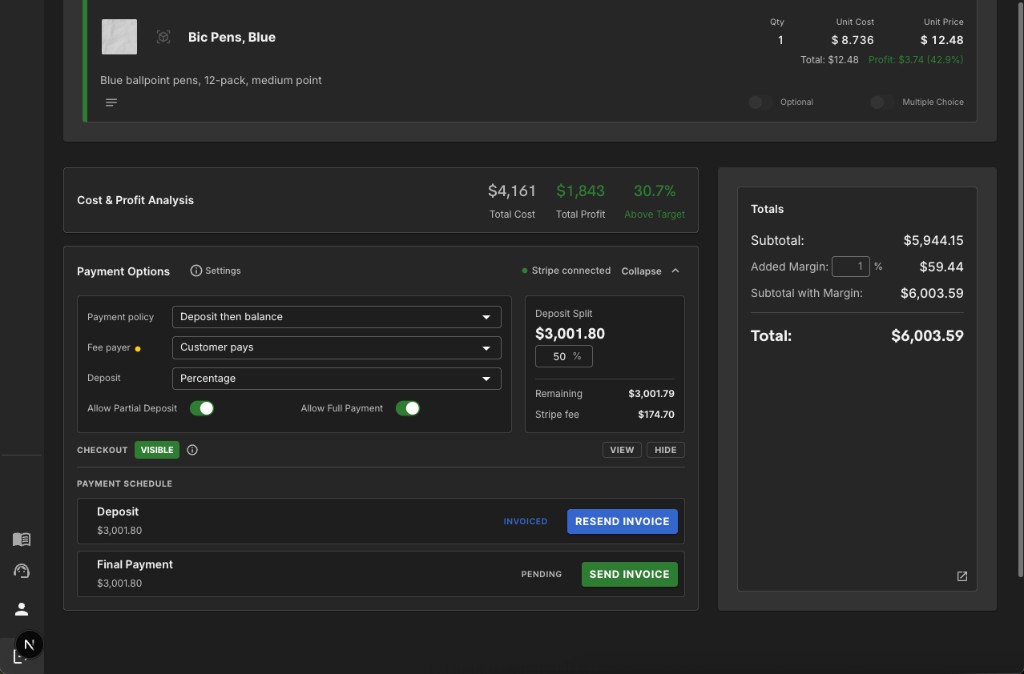
In the Quote Builder, scroll to the Payment section at the bottom of the page. There you can:
- Choose the payment terms and deposit configuration for this quote (aligned with organization defaults unless you override).
- View the milestones AirShop will invoice or track (deposit, balance, or custom milestone names depending on terms).
- Set payment terms when the quote had no schedule yet.
-
For sent quotes where the public payment link can be tuned independently from saving line items:
- Public payment visibility shows VISIBLE or HIDDEN on the public quote.
- Use Show / Hide so customers either see a Stripe-powered payment option on the shared link or payment stays internal/offline-only while milestones remain saved.
Send Invoice opens the milestone invoice workflow for the next open milestone once the quote is eligible (for example accepted or invoicing-ready statuses). You can resend from the Payments page drawer as well.
Settings beside organization-level copy links to Quote Settings → Payment Options for admins adjusting defaults.
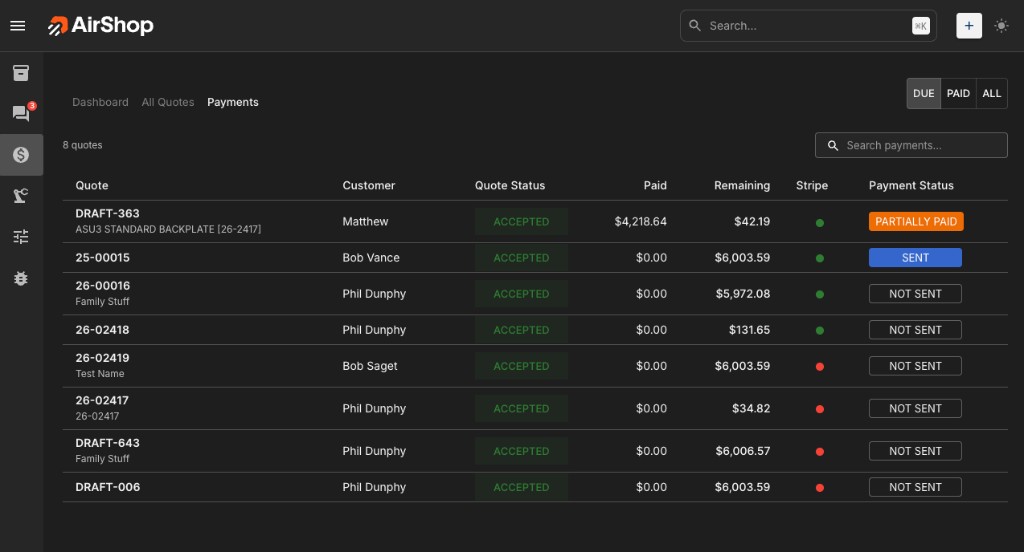
4. Payments workspace (/quotes/payments)
Reach it from Quotes → Payments in the sidebar.
Purpose:
- Filters: Due, Paid, All
- Search by quote number, title, or customer
- Rows show quote status, amounts Paid and Remaining, a Stripe status indicator, and billing state (Sent, Partially paid, Paid in full, Not sent, etc.)
- Clicking a quote opens the detail drawer: acceptance date, milestones (pending / invoiced / paid / waived), each payment recorded, and actions:
- Send invoice / Resend invoice for the next milestone
- Record payment for checks, wires, ACH, cash, etc. (includes optional link to a milestone and reference fields)
- Void — Appears only for manually recorded (offline) payments that did not go through Stripe checkout. Voiding fixes typos or reverses an internal entry; milestone balances recalculate. Card or Checkout payments are not voided in AirShop—process a refund (or partial refund) in Stripe so your ledger matches the processor.
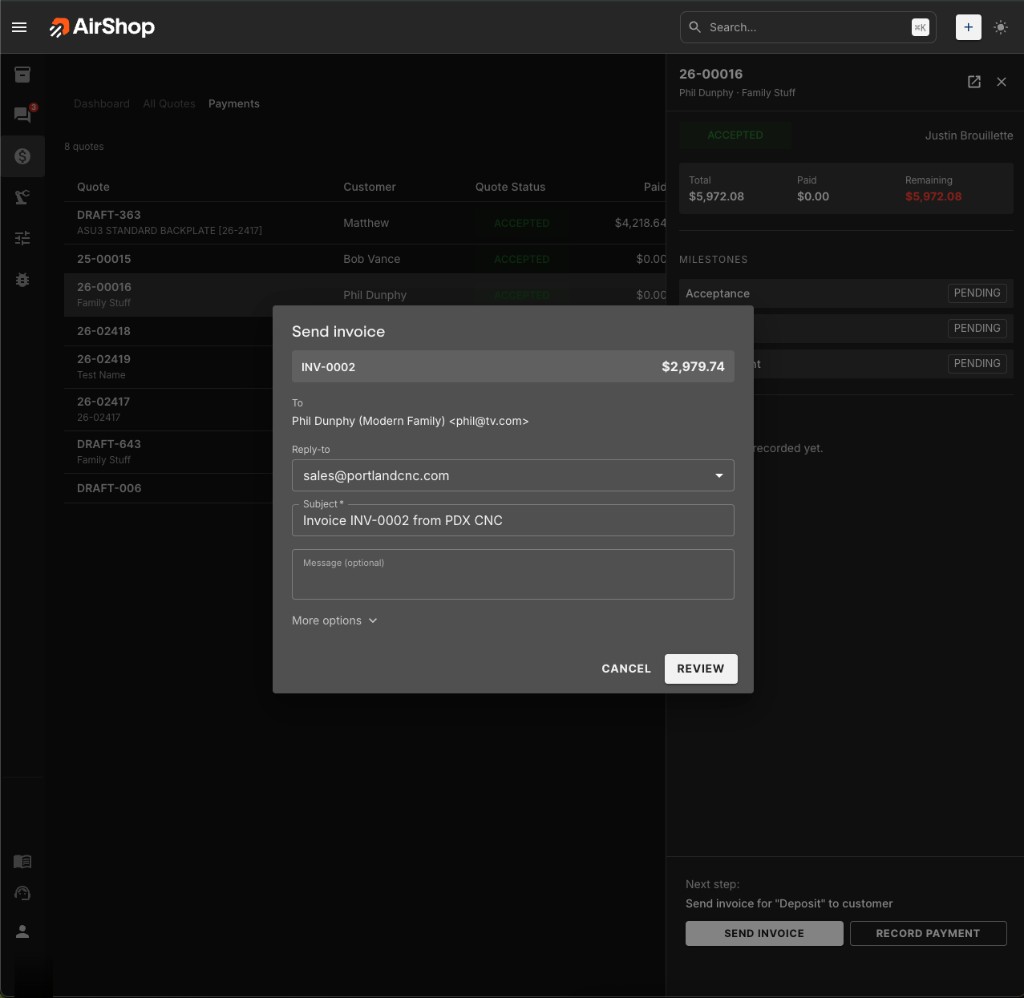
Deep link: append ?quote=<quote_id> so a specific quote opens selected after load (handy when pasting URLs from teammates).
5. What customers see
- Receive the public quote link (same workflow as Send and Share Quotes).
- Accept the quote when they are ready (your process may require approval first).
- If public payment is VISIBLE and Stripe Connect is configured, customers can pay deposits, balances, or flexible amounts from the quote using Stripe.
- Customers may receive invoice emails according to Quote Settings (Invoicing), including PDF and payment link when Stripe is enabled.
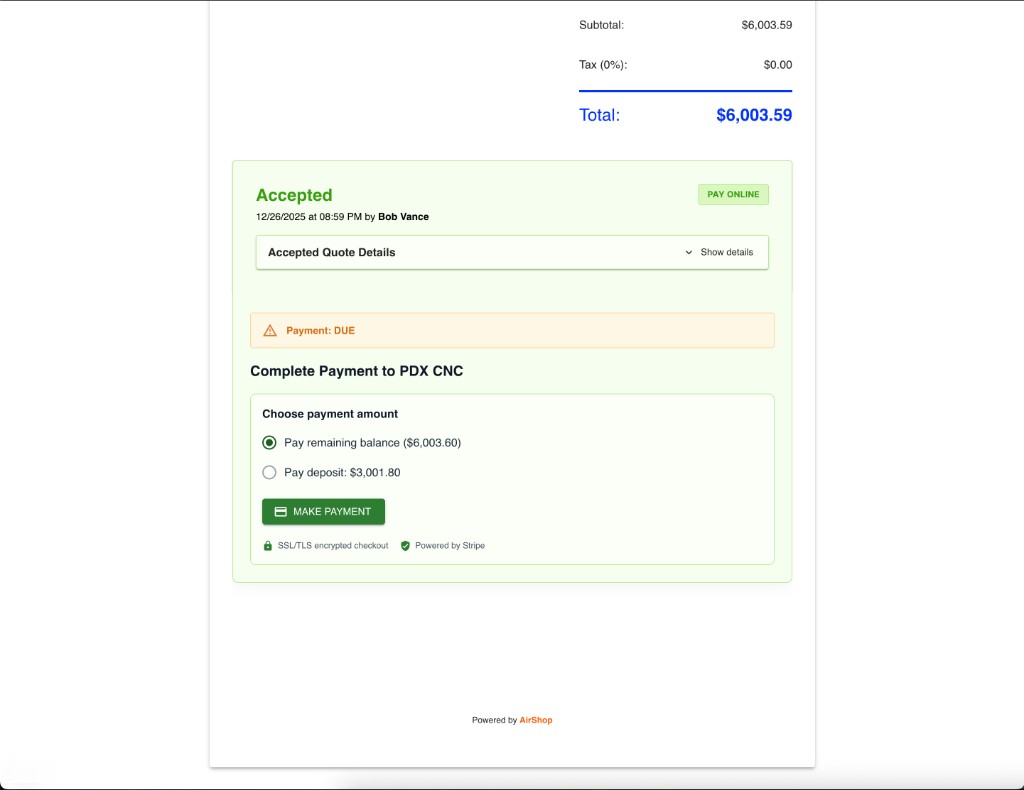
Internally AirShop tracks milestone states (pending, invoiced, paid, waived) so invoices and reminders stay coherent.
6. Subscription vs merchant payments
- Stripe Connect here pays your shop via your connected Stripe account for customer quote payments.
- Your AirShop subscription invoice is billed separately (Subscription). Those charges do not use this Connect onboarding.
7. Troubleshooting
Connect flow fails or returns an error on the Stripe page
- Finish the flow in the same browser session; avoid blocking pop-ups if your browser opens Stripe in a new window.
- Confirm you are signed into AirShop as an organization administrator.
- Return to Stripe Payments and try Connect with Stripe again. If a yellow alert shows a message from the redirect, read it and retry after fixing the issue Stripe described.
“Only admins can connect Stripe”
- Ask an Organization Administrator to complete Connect or to grant you admin if appropriate.
Connected but customers still do not see card payment
- In Quote Settings → Payment Options, confirm terms expect online collection and fees/PO rules are as intended.
- In the Quote Builder payment section, confirm public payment is VISIBLE for the shared link.
- For test environments, confirm you are using test card numbers, not a real card.
Cannot void a payment in the drawer
- Void is only for offline-recorded payments. For Stripe Checkout or card charges, use Refunds in the Stripe Dashboard so the processor and AirShop stay aligned.
8. Security and operations
- Never paste Stripe secret keys or restricted API keys into AirShop; connection is OAuth-only for Connect.
- Restrict Connect, Disconnect, and subscription billing to trusted org admins.
- After disconnecting in AirShop, your Stripe account still exists—reconnect anytime with Connect with Stripe.
Related
- Quote Settings
- Quote Options Panel — Display and branding overrides in the Quote Builder (not payment terms).
- Send and Share Quotes
- Outbound Webhooks — Still available for quoting automation alongside billing