Files
The Files page lists every file your organization has received (customer upload links, inquiry form attachments, and staff uploads on inquiries) in one searchable grid.
Use the Inquiries → Files tab (same bar as Inquiries, Customers, and Organizations).
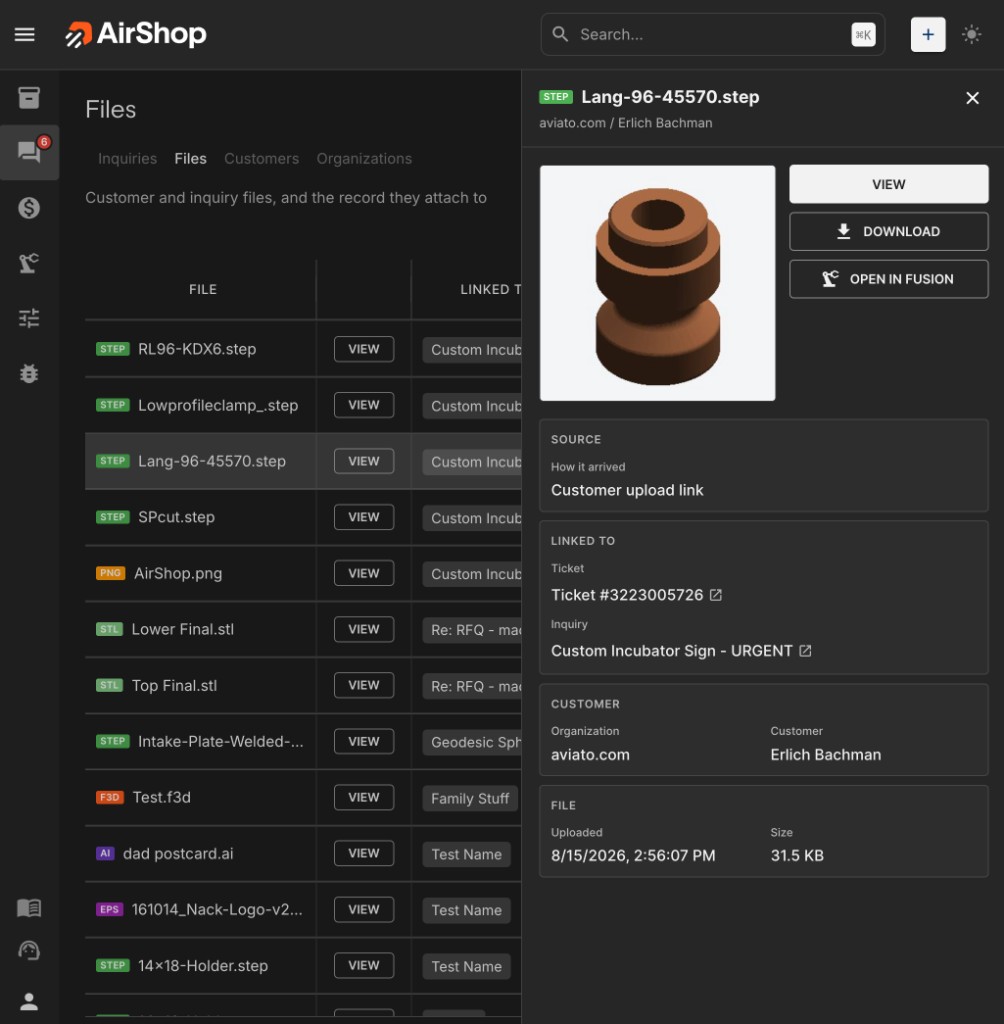
What's in the grid
Each row shows:
| Column | What it tells you |
|---|---|
| File | Filename |
| Type | Extension badge (STEP, STL, PDF, PNG, and similar) |
| Linked to | The inquiry, ticket, quote, or inventory item the file belongs to |
Search by filename, customer, or linked record. Filter and sort columns like other AirShop grids. Click a row or VIEW to open the detail drawer.
File drawer
The drawer is your quick look at one file without leaving the grid.
Actions
- View: open the full-screen viewer (images, PDF, and 3D models)
- Download: save a copy
- Open in Fusion: launch STEP, IGES, or STL in Autodesk Fusion (see Open in Fusion)
Details
- Source: how the file arrived (customer upload link, inquiry form, staff upload on an inquiry)
- Linked to: links to the Help Scout ticket, inquiry, quote, or item
- Customer: organization and contact when known
- File: upload date and size
STEP and STL files show an isometric preview thumbnail when one is available.
Where files come from
Files on this page include:
- Customer upload links: files sent through
/u/...links from Help Scout or elsewhere. See Customer upload links. - Inquiry form attachments: files customers attach when submitting an inquiry form.
- Staff inquiry uploads: files your team adds on an inquiry's Attachments section.
All of these also appear on the linked inquiry under Attachments when an inquiry exists.
Help Scout sidebar and notes
In Help Scout, upload thumbnails still appear in the AirShop sidebar. Click a thumb to open the file in AirShop (you must be signed in).
When a customer upload finishes, AirShop can post an internal note with a staff view link. Those links use /files/{fileId}. Older /uploads/ URLs redirect to /files automatically.