Quote Options Panel
Each quote has a Settings button in the upper right that opens the Quote Options panel. Use it to override Quote Settings for that quote only—for example, when a specific quote needs different display options or styling.
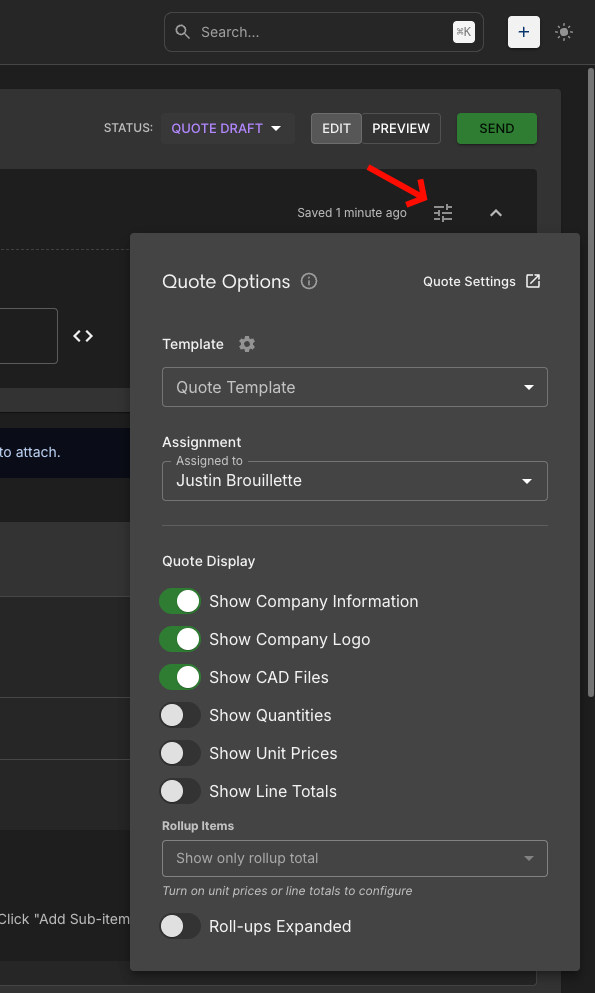
How to access: In the Quote Builder, click the settings icon (stack of horizontal lines) in the upper right—to the right of "Saved X ago" and left of the chevron.
What the panel shows:
- Quote Settings link (top right of panel) — Opens the full Quote Settings page where margin, tax, and organization defaults live
- Template — Choose a Quote Template
- Assignment — Assigned to
- Quote Display toggles — Show Company Information, Show Company Logo, Show CAD Files, Show Quantities, Show Unit Prices, Show Line Totals
- Rollup Items — Show only rollup total, Roll-ups Expanded (requires unit prices or line totals enabled)
Quote Display
Control what appears on each quote using the toggles in the Quote Options panel:
- Toggle Show Company Information on or off
- Toggle Show Company Logo on or off
- Toggle Show CAD Files, Show Quantities, Show Unit Prices, Show Line Totals as needed
- Configure Rollup Items (requires unit prices or line totals enabled)
Related: See Quote Settings for organization-level defaults (margin, tax, labor categories, etc.).