Quote Settings
How to Find:
- In Left Nav, expand Settings → Quote Settings
- OR Search
⌘K(Mac) /Ctrl+K(Windows) for Quote Settings
AirShop lets you customize your quotes to match your brand and workflow. Add your logo, control what appears on each quote, and set default margin and tax. Organization-level defaults apply to new quotes unless you override them per quote using the Quote Options panel.
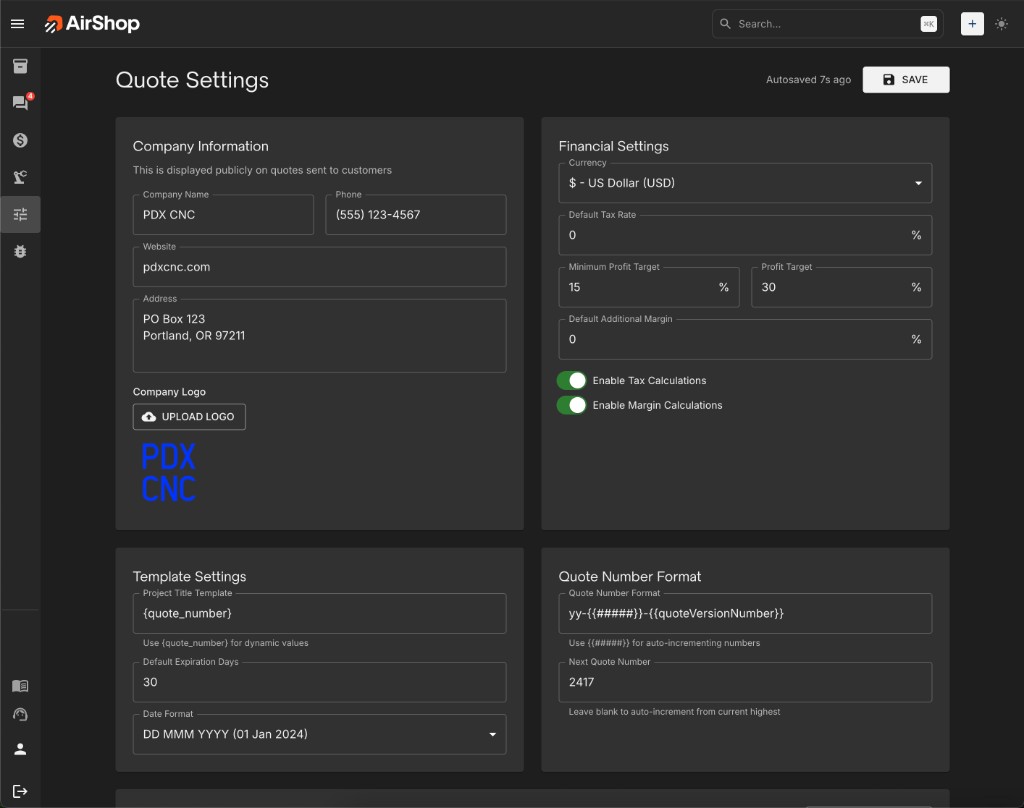
Company Information
This is displayed publicly on quotes sent to customers.
- Company Name — Your business name
- Phone — Contact number
- Website — Your company URL
- Address — Multi-line address (e.g., PO Box, city, state, ZIP)
- Company Logo — Upload your logo; turn on Show Company Logo in Quote Options for each quote to display it. Confirm the logo appears in quote preview and PDF export.
Financial Settings
Organization-level defaults for currency, tax, and margin.
- Currency — Choose your currency (e.g., US Dollar)
- Default Tax Rate — Set default tax percentage
- Minimum Profit Target — Minimum margin percentage
- Profit Target — Default profit target percentage
- Default Additional Margin — Extra margin applied to new quotes
- Enable Tax Calculations — Toggle tax on or off
- Enable Margin Calculations — Toggle margin calculations on or off
Template Settings
Control how quote titles and dates appear.
- Project Title Template — Use
{quote_number}for dynamic values - Default Expiration Days — Number of days until a quote expires (e.g., 30)
- Date Format — Choose display format (e.g., DD MMM YYYY)
Quote Number Format
Configure how quote numbers are generated.
- Quote Number Format — Use
{{#####}}for auto-incrementing numbers and{{quoteVersionNumber}}for version. Example:yy-{{#####}}-{{quoteVersionNumber}} - Next Quote Number — Leave blank to auto-increment from the current highest, or set a starting value
Display & Visibility Options
Configure default display settings for new quotes and overall quote visibility. Use Reset to Defaults to restore Content & Branding, Pricing & Totals Display, and System Options to their defaults.
Content & Branding — Show Company Logo, Show Company Information, Show QR Code, Show CAD Files to Customers
Pricing & Totals Display — Show Quantities, Show Unit Prices, Show Line Totals. Rollup Items — Show only rollup total, or show each sub-item's price (requires unit prices or line totals enabled)
System Options — Auto-Save Enabled
Colors & Branding
Customize the visual appearance of your quotes.
- Brand Color — Primary accent color
- Text Color — Main text color
- Background — Quote background color
- Highlights — Highlight/alternate row color
- Font Family — Helvetica, Arial, Times, or Georgia
Use the Preview panel to see changes before saving.
Payment Options
Coming Q1 2026
Payment options will be available in Quotes in Q1 – 2026.
Quote Follow-up Settings
Configure when follow-up reminders appear and the email templates used to reach out to customers about sent quotes. See Quote Follow-ups for full details.
Configure in Quote Templates under Follow-up Email Templates & Timing:
- Enable follow-ups — Turn reminders on or off
- Schedule — Unopened (hours), First (days), Second (days), Third (days)
- Templates — Subject and body for each follow-up step, with tokens like
[Quote-title],[Customer-given-names],[quote-link]
Quote Email Reply-To Settings
Configure where replies to quote emails are sent.
- Reply-To Email — Choose Organization Email, Person Sending Quote, or Assigned User
- Organization Reply Email — When using Organization Email, enter the address (e.g., quotes@yourcompany.com) where customers should reply
Labor Categories
Define the labor types available when adding labor line items to quotes. These categories appear in the Labor Category dropdown when you add a labor item in the Quote Builder.
- Add Labor Category — Click to add a new category
- Labor Category 1, 2, 3… — Enter a name for each category (e.g., CNC Labor, Shop Labor, Design Labor, Installation)
- Remove — Remove a category you no longer need
Default categories are CNC Labor, Shop Labor, and Design Labor. Add or edit categories to match how your shop tracks labor on quotes.
Related: To override these settings for a single quote, use the Quote Options panel in the Quote Builder.