Open in Fusion
You can open 3D model files from inquiry attachments directly in Autodesk Fusion. This lets you work on CAD files without downloading them first.
How to Open in Fusion
There are two ways to open a file in Fusion from an inquiry:
Method 1: From the 3D Viewer
When a compatible 3D model is displayed in AirShop's integrated 3D viewer:
- Open the inquiry and view the 3D model in the viewer.
- Click OPEN IN FUSION in the viewer header.
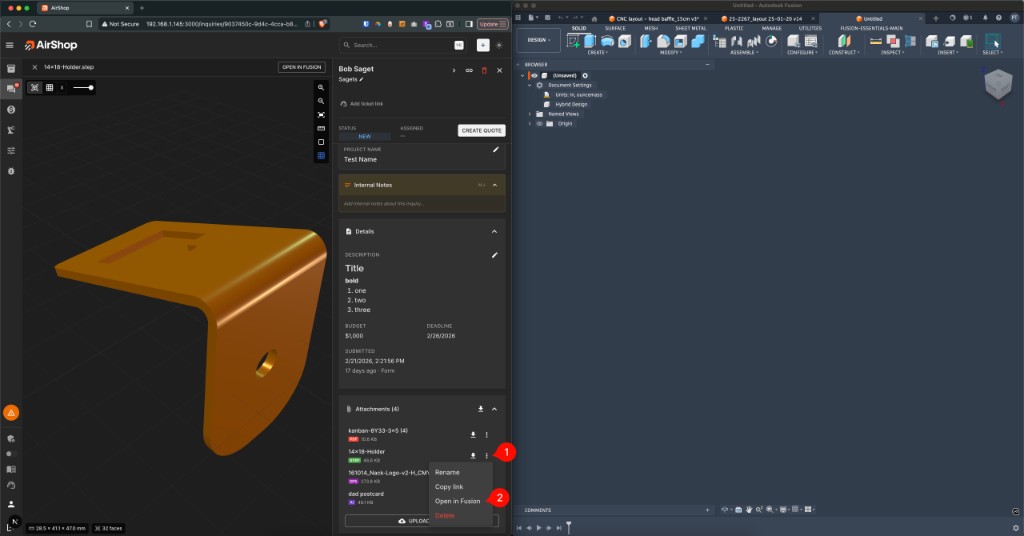
Method 2: From the Attachments List
- Open the inquiry.
- In the Attachments section, find the 3D model file you want.
- Click the ⋯ (more options) icon next to the file.
- Select Open in Fusion from the menu.
Supported File Types
| Format | Supported |
|---|---|
Fusion (.f3d) |
Yes — native format |
STEP (.step, .stp) |
Yes — confirmed working |
IGES (.iges, .igs) |
Yes |
SAT (.sat) |
Yes |
STL (.stl) |
Yes |
OBJ (.obj) |
Yes |
The Open in Fusion option appears only for file types that Fusion can open via the fusion360:// protocol. Non-CAD files (e.g., images, PDFs) do not show this option.
Requirements
- Autodesk Fusion must be installed on your computer.
- Your browser must allow the link to launch Fusion (some browsers block external app links).
- The file format must be supported by Fusion.
If Fusion Doesn't Open
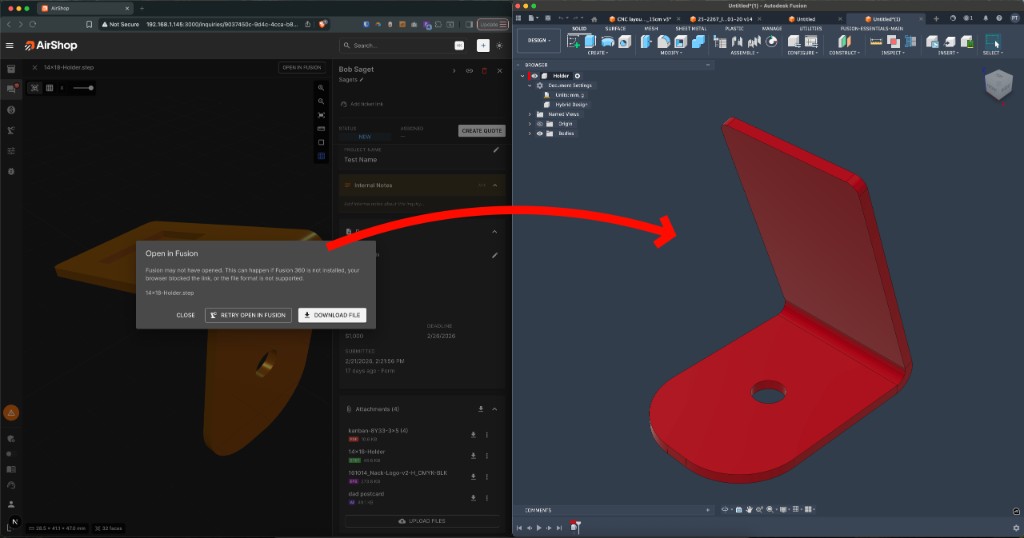
If Fusion does not open when you click Open in Fusion, AirShop shows a dialog with options:
- Fusion may not have opened — This can happen if Fusion is not installed, your browser blocked the link, or the file format is not supported.
- RETRY OPEN IN FUSION — Try again.
- DOWNLOAD FILE — Download the file and open it manually in Fusion.
Related
- Inquiry Forms — How inquiries and attachments are collected
- Create a Quote — Turn inquiries into quotes