Merging Locations
When several Locations really mean the same spot, or you are tidying up your layout, you can merge them into one. AirShop moves every item from the Locations you are done with into the Location you keep, then removes those extra Locations.
Two ways to merge
Merge several Locations
- Go to Inventory → Locations.
- Turn on the checkboxes on the left for two or more Locations you want to combine.
- When more than one row is selected, MERGE appears along with the other actions for your selection. Click MERGE.
Use this method when you want to fold more than two Locations into one in a single step.
Merge Two Locations
- Open a Location so you see its full page—not just the list.
- Tap or click the ⋮ (three-dot) menu on that page.
- Choose the merge option, then pick one other Location to combine with the one you have open.
Use this method when you only need to merge two Locations: the one you are looking at, and one other.
Pick the Location that survives
A Merge locations window opens. Choose one Location that keeps its name and ID. Everything stored in the other Locations moves there, and those other Locations go away.
The picture below shows what you see after selecting several Locations on the list and clicking MERGE.
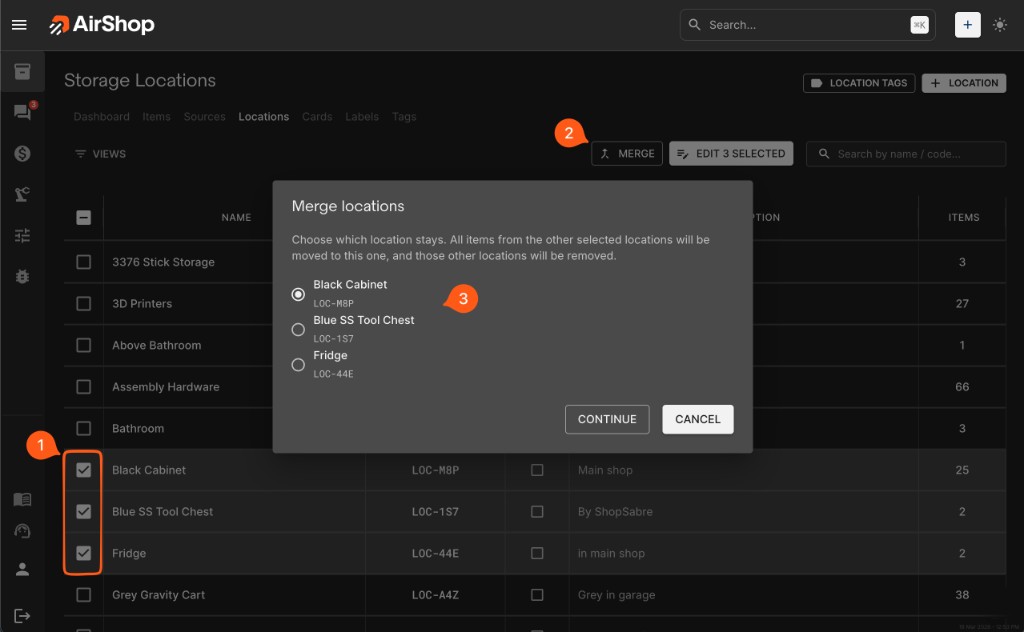
- Click the Location that should remain (the round radio buttons).
- Click CONTINUE to go ahead, or CANCEL to stop without changing anything.
The text in the window reminds you that all items move into the Location you keep, and the rest are removed.
After you merge
When the merge finishes, AirShop opens Merge complete — update print queues?
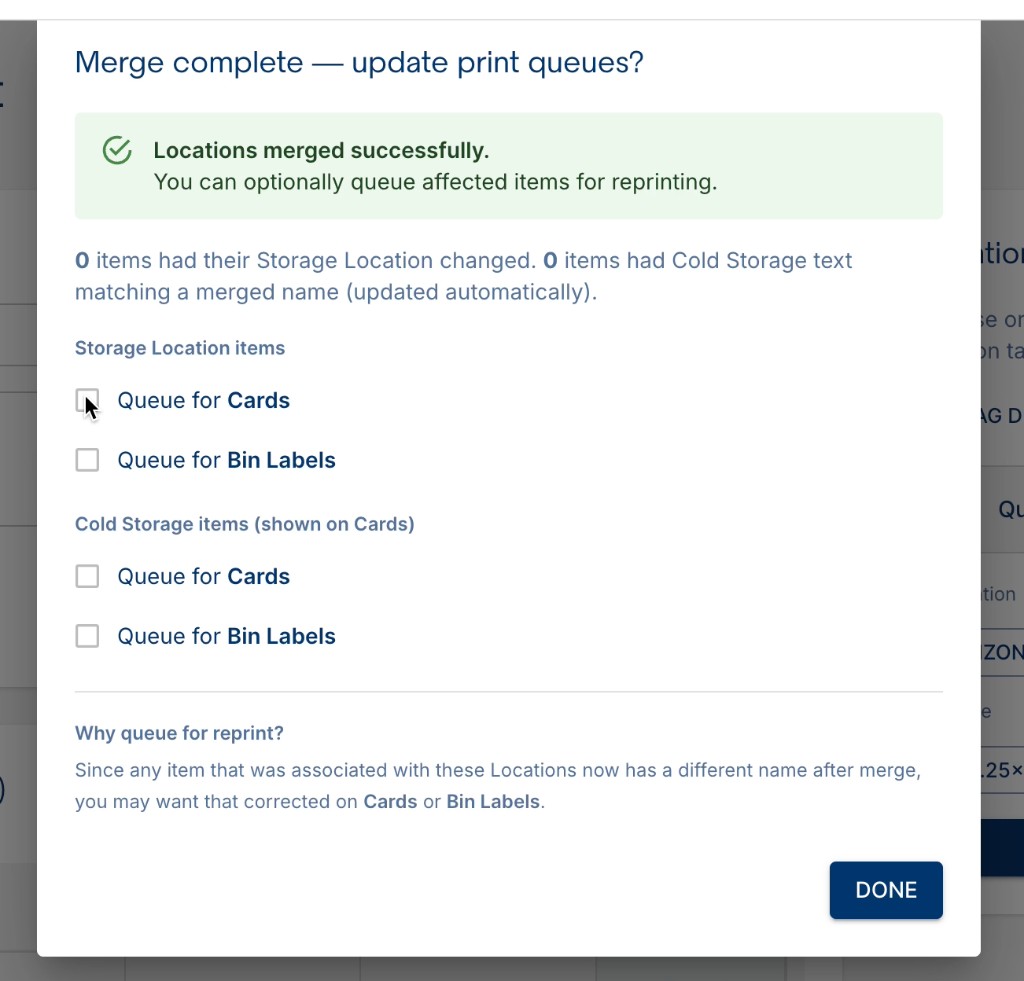
AirShop confirms Locations merged successfully and shows counts of items whose Storage Location or Cold Storage text changed.
- Under Storage Location items, check Queue for Cards and/or Queue for Bin Labels for items you want reprinted.
- Under Cold Storage items (shown on Cards), do the same if those need reprinting.
- Click DONE. Leave the boxes unchecked if you do not need reprints right now.
Related
- Managing Locations — creating, editing, and organizing Locations
- Cards & Bin Labels — printing Cards and Bin Labels
- Location Tags — printing Labels for a Location