Bulk Imports
Bulk import lets you add or update many records at once by uploading CSV or Excel files. All imports are available from Settings → Import Data at airshop.work/import.
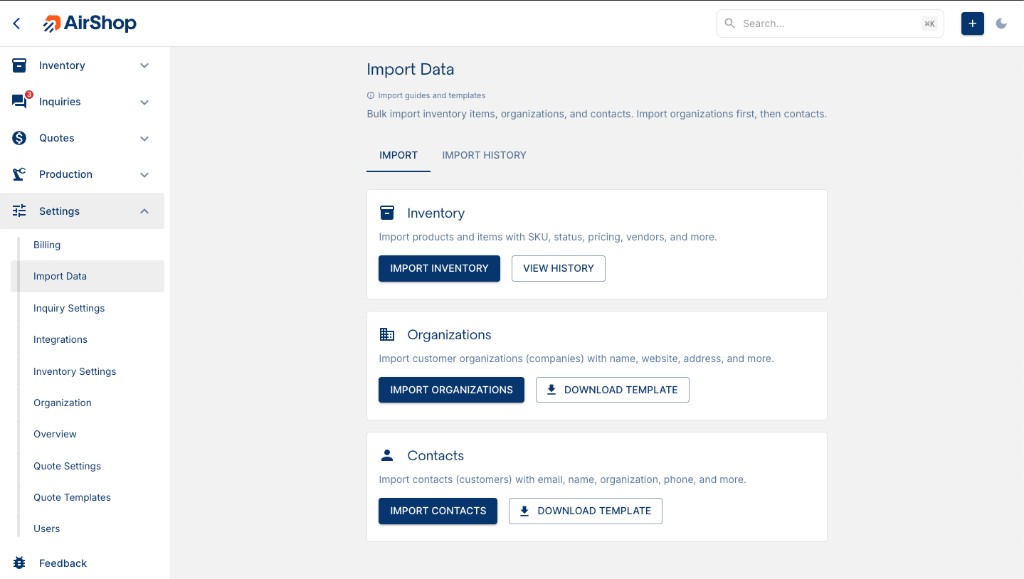
Recommended Import Order
When importing data for the first time, follow this order so records link correctly:
- Organizations — Import customer organizations (companies) first
- Customers — Import people and link them to organizations by name
- Inventory — Import products, SKUs, and stock levels
Import Types
Organizations
Import customer organizations (companies you do business with) with name, website, address, and more.
- Template:
airshop-organizations-import-template.csv - Required: Organization Name
- Access: Import Data → Import Organizations, or Organizations → Import
See Bulk Import Organizations for fields and format.
For QuickBooks users, see QuickBooks Import for export steps and column mapping.
Customers
Import customers (people) and link them to existing organizations by name.
- Template:
airshop-customers-import-template.csv - Required: Email, First Name, Last Name
- Access: Import Data → Import Customers, or Customers → Import
See Bulk Import Customers for fields and format.
Inventory
Import inventory items (products, parts) with SKU, status, pricing, and vendor info.
- Template:
airshop-inventory-import-template.csv - Required: name, status
- Access: Import Data → Import Inventory, or Inventory → ITEM dropdown → Import
See Bulk Import Inventory for fields and format.
Exports
Inventory exports use the airshop- prefix for easy identification:
- Inventory export:
airshop-inventory-export-YYYY-MM-DD.csv(all, selected, or filtered) - Stocktake:
airshop-stocktake-{name}-{date}.csv
See Inventory Export for details.
Administrator Only
All bulk imports and exports are restricted to Organization Administrators. See Settings for organization management.