Quote Follow-ups
Quote follow-ups help you stay on top of sent quotes that need attention. When a follow-up is due, AirShop shows a reminder so you can send a customer-facing email—either as a preview or with edits—directly from the Quotes list (Data Grid) or Quote Builder.
Overview
After you send a quote, AirShop tracks when the customer opened it. Based on your schedule, follow-up reminders appear when:
- Unopened — The quote was sent but not viewed within a set number of hours
- First follow-up — A set number of days after the quote was sent
- Second follow-up — A later milestone (e.g., 7 days)
- Third follow-up — A final milestone (e.g., 14 days)
Each reminder is sent to your customer from your organization. You choose when to send, and you can edit the subject and body before sending or dismiss the reminder for that step.
Where Follow-ups Appear
| Location | What You See |
|---|---|
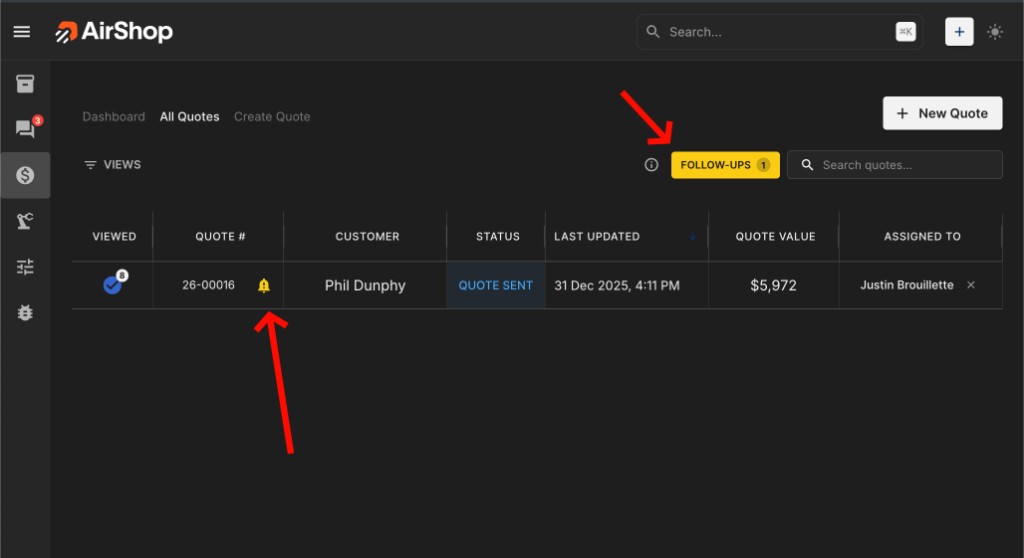
| Quotes list | A FOLLOW-UPS button shows the count of quotes needing follow-up. Quotes with reminders due display a bell icon. Click the button or open a quote to act. |
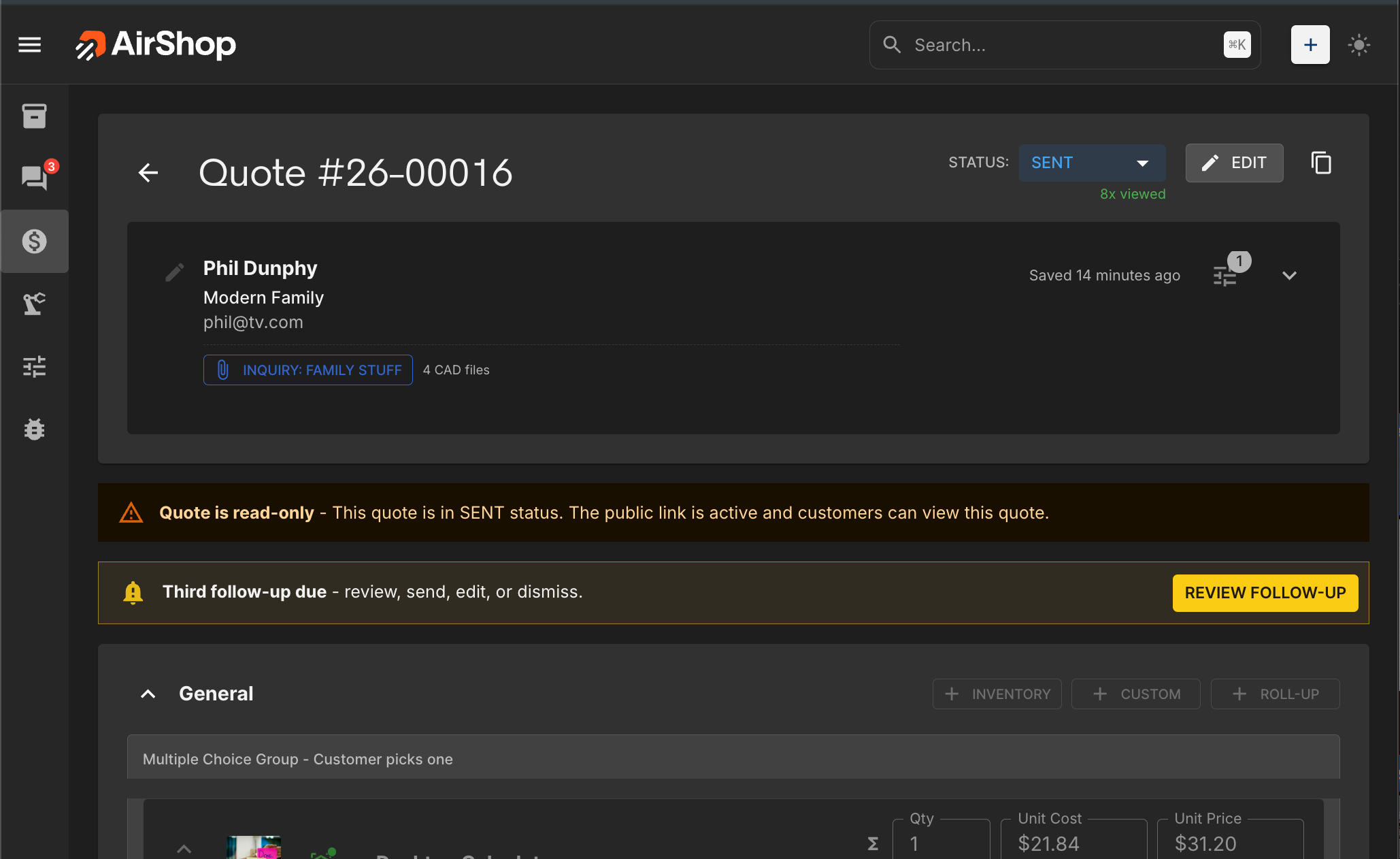
| Quote Builder | When viewing a sent quote with a follow-up due, a reminder banner and REVIEW FOLLOW-UP button appear in the quote view. |
Follow-up visibility and actions depend on your organization's quote access and permissions.
Sending a Follow-up
- In the Quotes list (Data Grid), click FOLLOW-UPS to see quotes needing attention, or open a quote with a bell icon (or open it directly in Quote Builder).
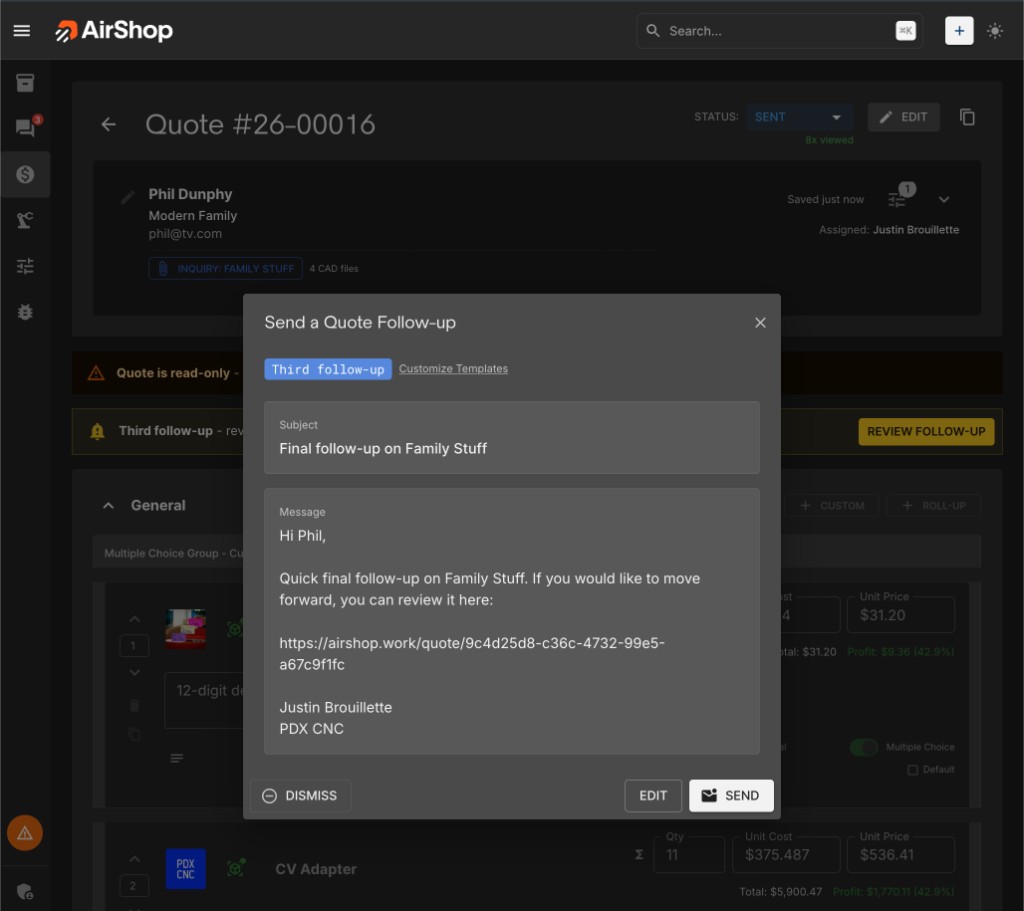
- Click REVIEW FOLLOW-UP in the quote view. The Send a Quote Follow-up dialog opens with the follow-up type (e.g., Third follow-up), subject, and message pre-filled from your template.
- Use Customize Templates to change defaults, or edit the subject and message in the dialog.
- Choose:
- SEND — Sends the email to the customer.
- EDIT — Make changes to the subject and body, then send.
- DISMISS — Hides this step for this quote. Future follow-up steps can still become due.
The email is sent to the customer’s email address. Replies go to the address configured in Quote Email Reply-To Settings.
Follow-up Schedule
Configure timing in Quote Templates under Follow-up Email Templates & Timing.
| Setting | Default | Description |
|---|---|---|
| Enable follow-ups | On | Turn follow-up reminders on or off for your organization. |
| Unopened (hrs) | 12 | Hours after sending before a first follow-up is due if the quote has not been viewed. |
| First (days) | 3 | Days after sending when the first follow-up becomes due. |
| Second (days) | 7 | Days after sending when the second follow-up becomes due. |
| Third (days) | 14 | Days after sending when the third follow-up becomes due. |
Logic:
- First follow-up is due when either:
- The quote was sent and not viewed for at least Unopened (hrs), or
- At least First (days) have passed since the quote was sent.
- Second and Third follow-ups use your configured day milestones. Depending on quote activity, reminders may use sent or viewed timing data.
Follow-up Email Templates
Each follow-up step has its own subject and body template. Configure them in Quote Templates under Follow-up Email Templates & Timing.
Default Templates
| Step | Default Subject | Default Body (summary) |
|---|---|---|
| First | Any Questions on [Quote-title] | Brief check-in, asks if the customer has questions, includes quote link. |
| Second | Following up on [Quote-title] | Checking in on the quote, offers to answer questions. |
| Third | Final follow-up on [Quote-title] | Final reminder with quote link. |
Template Tokens
Use these placeholders in your subject and body. They are replaced when the email is sent.
| Token | Replaced With |
|---|---|
[Quote-title] or {quote_title} |
Quote title or quote number |
[Customer-given-names] or {customer_name} |
Customer’s first name or full name |
[Your-name] or {sender_name} |
Sender’s name |
[company-name] or {company_name} |
Organization name |
[quote-link] or {quote_link} |
Link to the quote |
{quote_number} |
Quote number |
{days_since_sent} |
Days since the quote was sent |
{days_since_viewed} |
Days since the customer viewed the quote |
Requirements & Exclusions
- Quote status — The quote must be in SENT status.
- Customer email — The customer must have an email address.
- Sample quotes — Follow-ups are not available for sample quotes.
- Access and permissions — Visibility and actions depend on your organization's quote access rules.
Related
- Quote View Tracking — When customers open your quotes
- Quote Settings — Reply-to, display, and organization defaults. Open Quote Settings
- Quote Templates — Follow-up templates and timing
- Quote Options Panel — Per-quote overrides
- Create a Quote — Create Quote