Help Scout Integration
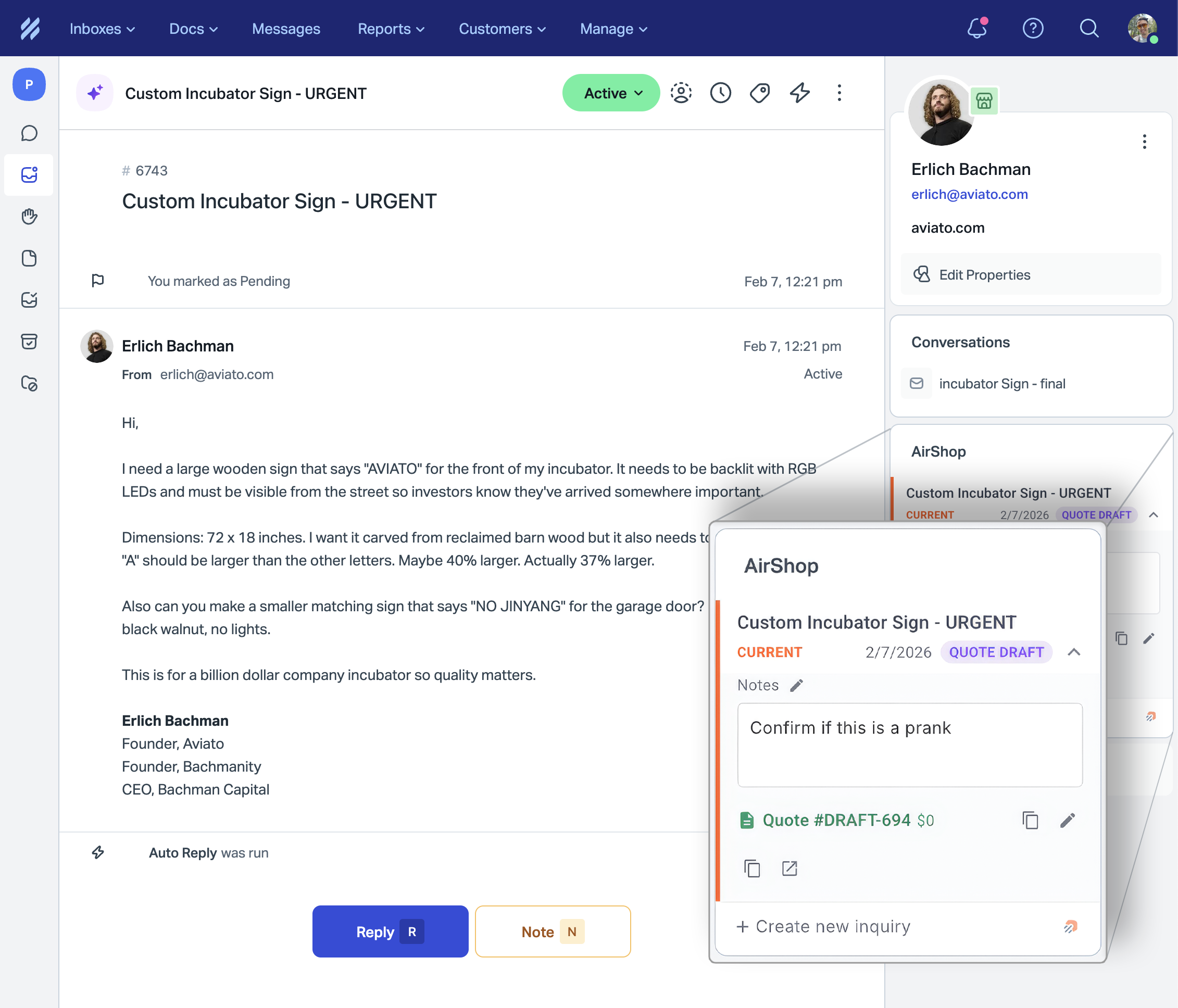
When you connect Help Scout to AirShop, the AirShop app appears in the sidebar of your Help Scout conversations.
What the Integration Does
Your team can:
- View inquiries and quotes for the customer in the current conversation
- Create new inquiries in AirShop without leaving Help Scout
- Edit notes and status on inquiries directly from the sidebar
- Open inquiries in AirShop with one click
Prerequisites
- An active AirShop account
- A Help Scout account with admin access
Setup
1) Open the Help Scout settings in AirShop
- Log in to your AirShop account and go to Settings → Integrations → Help Scout
- Keep this page open — you'll enter your Mailbox ID and other values here after setting up Help Scout
2) Create a Custom App in Help Scout
- In Help Scout, go to Manage → Apps → Custom Apps
- Click Create Custom App
- Fill in:
- App name: e.g. "AirShop"
- Content URL:
https://www.airshop.work/helpscout(no trailing slash) - Content signature key: Generate a random string (40 characters or less) and save it — you'll need to provide this to AirShop (see 4)
- Side Panel URLs: Same as Content URL, or leave as instructed
- Click Save
- Install the app and assign it to the mailboxes you use for AirShop
3) Enter your Mailbox ID in AirShop
- In Help Scout, go to Manage → Mailboxes → select the inbox you use for AirShop
- The Mailbox ID is the number at the end of the URL (e.g.
https://secure.helpscout.net/settings/inboxes/12345→ Mailbox ID is12345) - In AirShop at Settings → Integrations → Help Scout, paste your Mailbox ID into the Mailbox ID field
4) Provide your Content signature key to AirShop
The Content signature key from your Help Scout Custom App must be configured in AirShop for the sidebar app to work.
- If the Help Scout settings page has a field for Content signature key, paste it there
- Otherwise, contact AirShop support with your Content signature key so we can configure it for your account
5) (Optional) Set up note sync
To copy conversation notes from Help Scout into AirShop, follow the Note sync instructions on the Help Scout settings page — you'll create a webhook in Help Scout and use the Callback URL and Secret from AirShop.
6) Save in AirShop
Click Save on the Help Scout settings page.
7) Verify it works
- Open a conversation in Help Scout (from a mailbox you linked)
- The AirShop app should appear in the right sidebar
- If you see customer inquiries or quotes, the integration is working
- Try creating a new inquiry from the sidebar
Troubleshooting
"Mailbox not linked" or no inquiries appear
- Go to Settings → Integrations → Help Scout and confirm your Mailbox ID is correct.
- The Mailbox ID must match the mailbox of the conversation you're viewing.
The app doesn't appear in the sidebar
- In Help Scout, go to Manage → Apps → find your Custom App → ensure it's installed and assigned to the right mailboxes.
"Invalid or missing Help Scout signature"
- Your Content signature key must be configured in AirShop. Contact support if you've provided it and the error persists.
The app shows "context timed out" or a loading error
- Ensure your Custom App's Content URL is exactly
https://www.airshop.work/helpscout(withwww, no trailing slash). - Contact AirShop support if it still fails.